Tech Expert Guide
Introduction
MacBook setup guide: troubleshooting why your MacBook isn’t detecting an external monitor and fix it Experiencing display detection issues between your MacBook M4 and an external monitor can be frustrating, especially when you rely on a larger screen for work or creativity. This guide walks you through a practical, step-by-step approach to diagnose and fix common problems—covering connection checks, software settings, and hardware considerations. Each step includes a suggested image concept to illustrate the point.
Verify the Basics
- Confirm the external monitor is powered on and set to the correct input source.
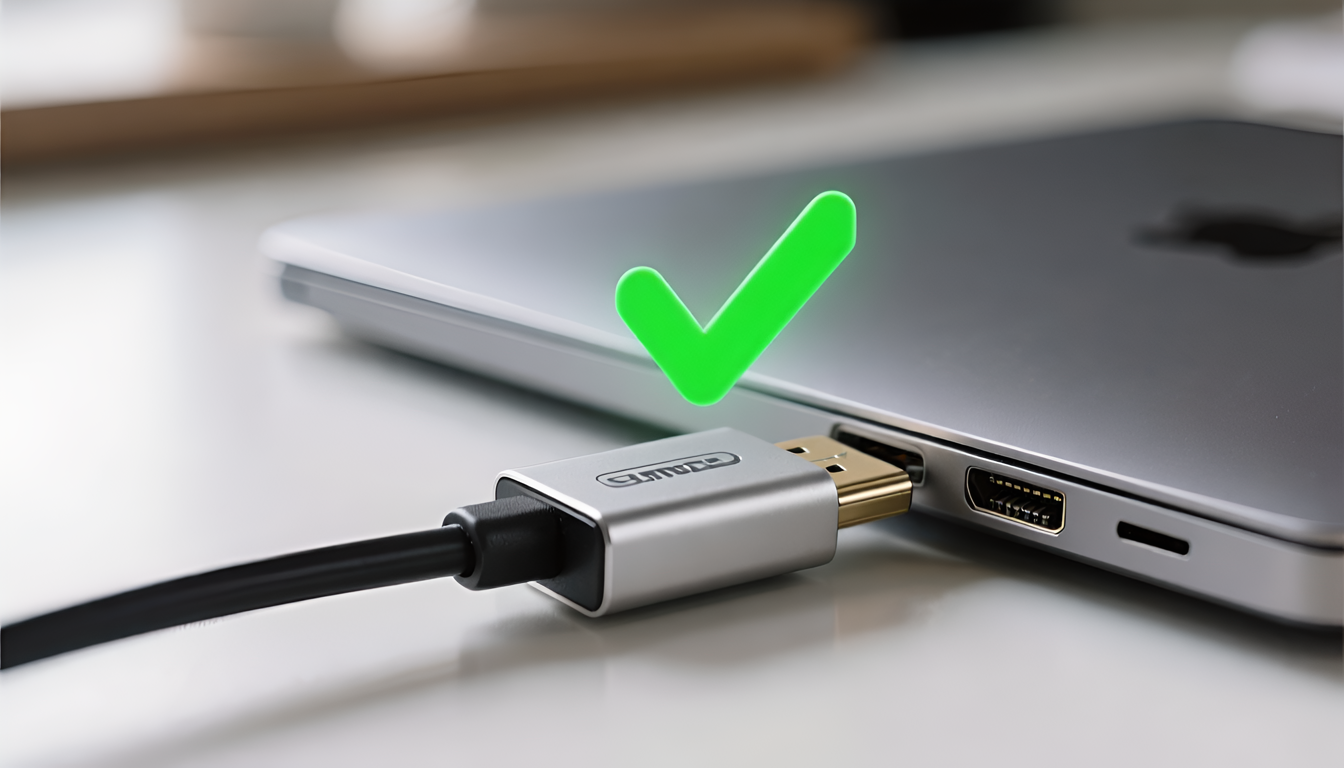
- Check that the cable is Connected properly at both ends.
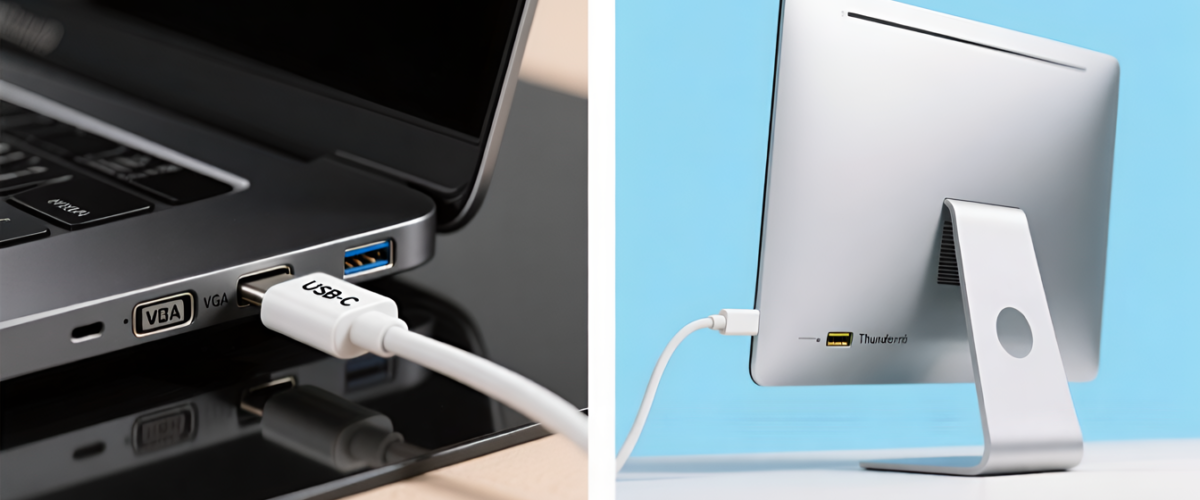
- Try a different or other port on the MacBook M4 if available (e.g., switch from USB-C to HDMI/DisplayPort if available
- If using an adapter, ensure it supports your monitor’s resolution etc.
Check Cables and Adapters
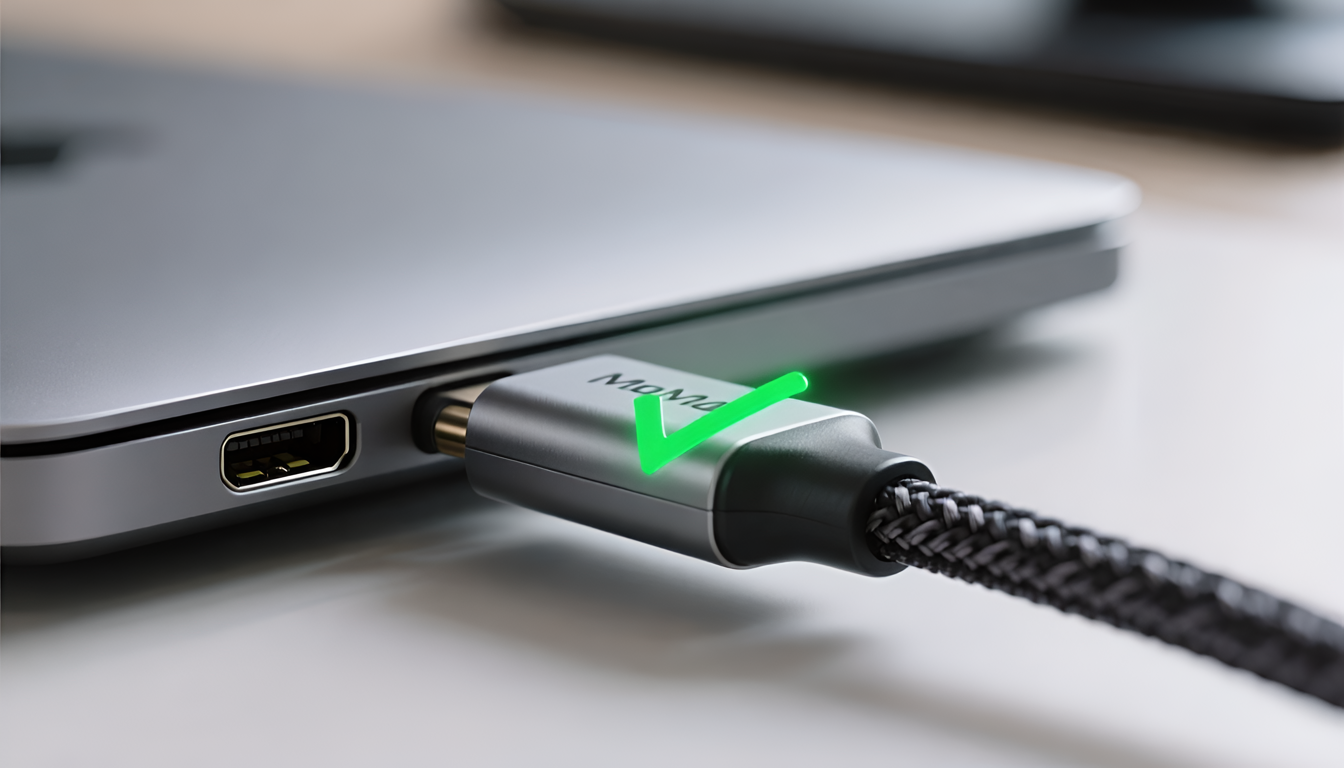
- Check Faulty cable HDMI/DisplayPort/USB-C cable/ C Type Cable
- If you’re using an adapter (USB-C to HDMI, OR C type to C for example), test with a different adapter model.
- Check if there is physical damage, pins, cable etc.
- use Command + F1 (or Command + Fn + F1) to toggle mirroring
- Quality cables and adapters reduce connection issues.
Detect Displays in macOS
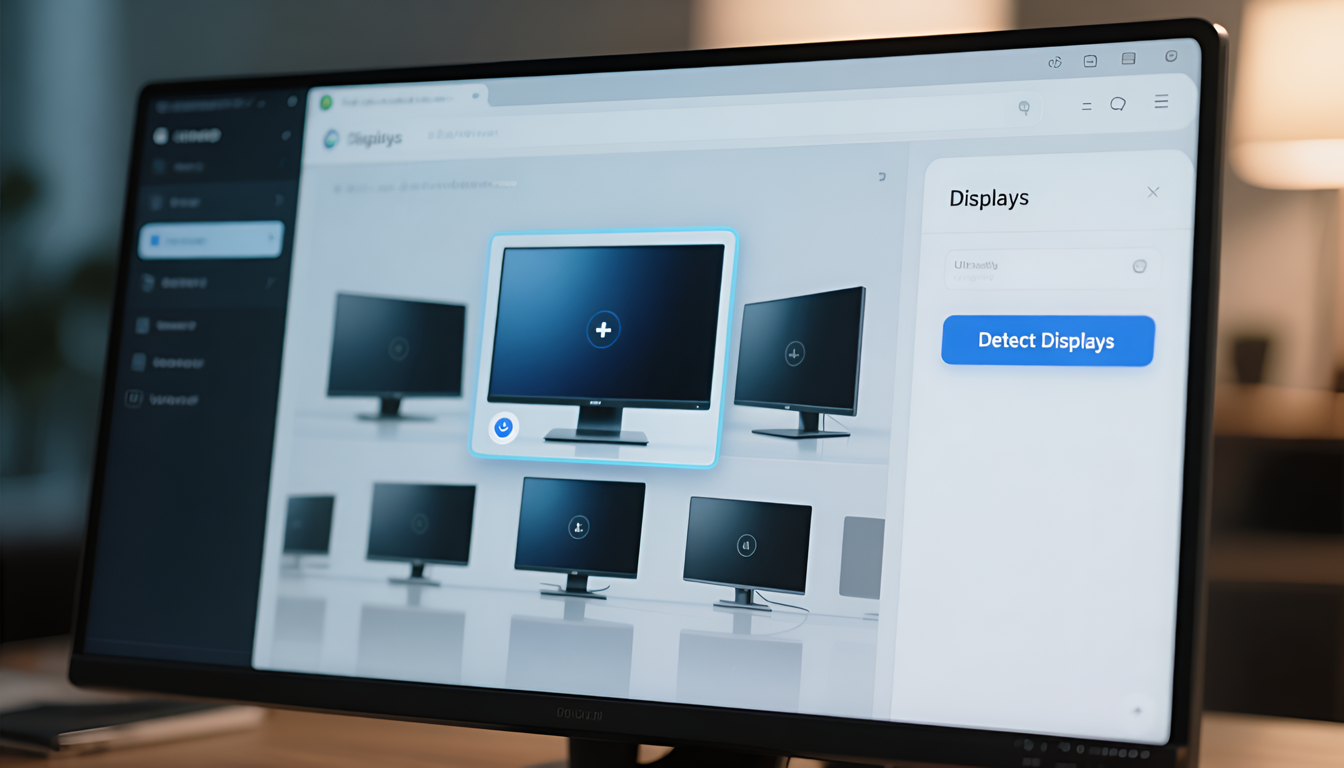
- On the Mac, go to Apple menu > System Settings OR System Preferences Displays.
- Click “Detect Displays” (hold Option Button on some macOS versions to detect the display
- If multiple displays appears, try arranging them or mirroring as per your need.
- Ensure “Default for display” is set or adjust resolution and refresh rate.
Check Display Settings and It's Resolution
- Verify that the monitor’s resolution is supported by your MacBook Pro M4.
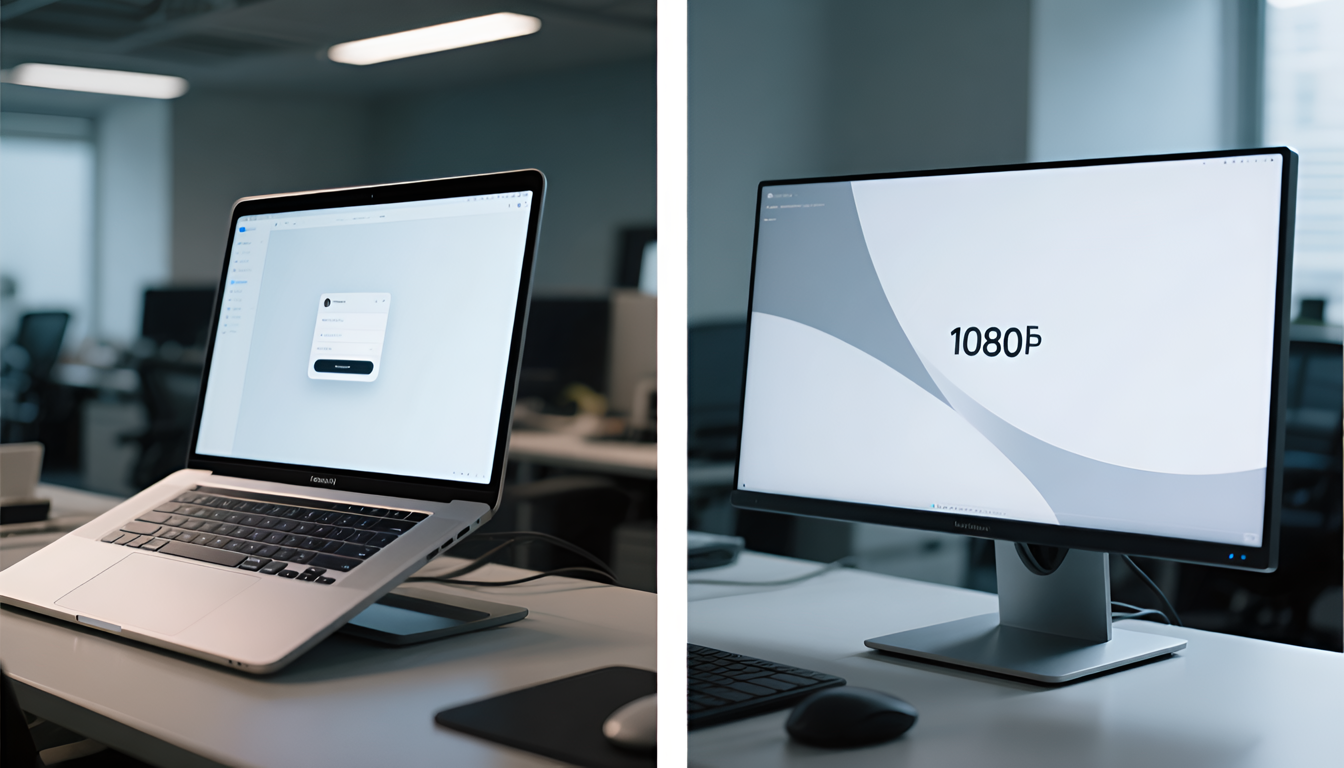
- Temporarily set the external display to a lower resolution or 1080p as per the testing purpose
- Experiment with a different refresh rate if available. { Test with 1080p to rule out high-resolution compatibility issues }